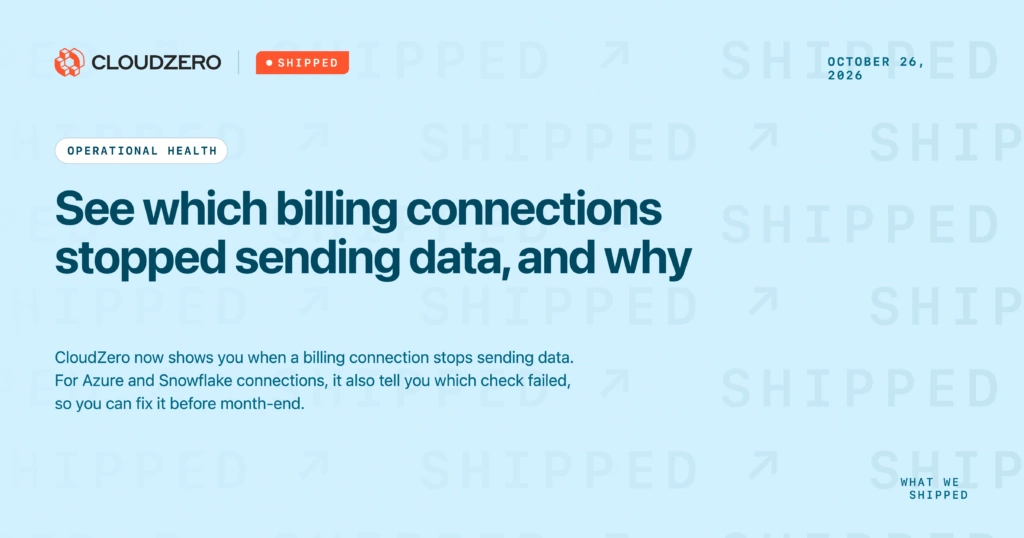
Every number in CloudZero comes from a billing connection. When a credential expires or a permission changes, that connection stops sending data, and your reports show less spend than you actually have. If you catch it early, you can fix the connection before month-end close.
You also need to know what broke. For Azure and Snowflake connections, CloudZero now tells you which check failed, so you can send the fix to the right person without opening a support ticket.
What we built
Operational Health is now generally available.
The connections page shows a chart of how much billing data each connection has sent over time. If a connection drops to zero, you can see the day it happened.
Each connection is marked Healthy or Error based on two settings you control:
- The longest gap, in hours, you expect between new data
- How many days in a period should have data
AWS, Azure, and GCP connections come with default settings. You can adjust them to fit your setup. Azure and GCP data can arrive a day or more late, so settings that are too strict will mark a working connection as an error. Settings that are too loose can let several days of missing data go unnoticed. Custom connections show a status once you enter these settings.
After this release, some connections may show a different status than before, because CloudZero now checks their recent data against these settings.
Azure and Snowflake connections also get a detail page with monthly charts and the result of each health check:
- Azure: authentication, report download, tags, billing period, credit balance, and reconciliation
- Snowflake: which required tables are in your share and which are missing
We’ll add detail pages for more providers.
How it works
Open the connections page to see each connection’s status and data volume. Click a connection’s name to change its settings. For Azure and Snowflake, the detail page shows each check’s result and names what’s missing when a check fails.
See it in the docs → https://docs.cloudzero.com/docs/connection-health