Why this matters
You know exactly where you want to go in CloudZero. Getting there sometimes takes a moment as you click into the nav, open a menu, scroll a dropdown, find the thing, click again. Every trip back to a familiar spot can take a few steps.
Shortcuts remove that friction. Press command+K on Mac or ctrl-K on Windows anywhere in CloudZero, type where you want to go, and hit Enter. That means there’s no clicking through the nav and no scrolling to find what you already know the name of. It’s a keyboard-first way to jump straight to any part of the product.
What we built
Shortcuts is a searchable menu you open with Command+K or Ctrl+K. Start typing and it surfaces matching destinations grouped into sections, then takes you there when you press Enter. It covers the places you move between most: product areas, tools, settings, and now your saved Explorer Views.
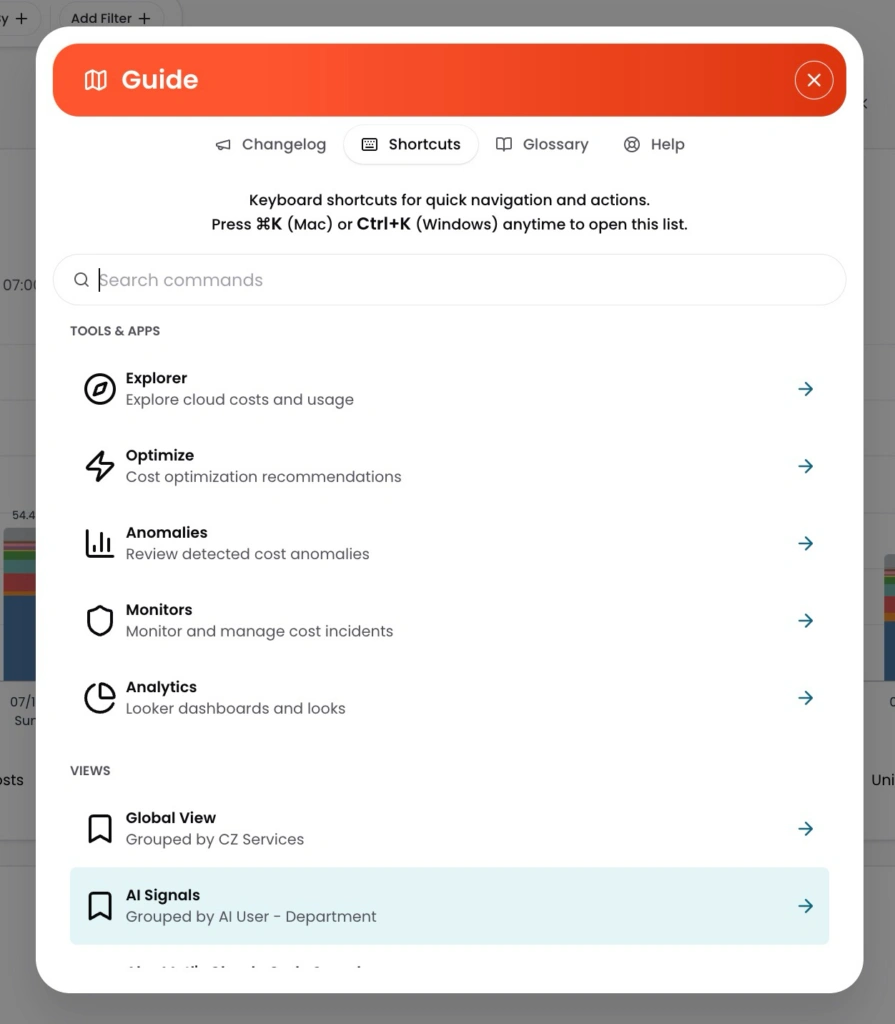
Image: A view of keyboard shortcuts to navigate and take action in CloudZero
How it works
Press Command+K or Ctrl+K anywhere in CloudZero to open Shortcuts, then start typing. Matches appear grouped by section, including a Views section alongside your other results. Pick one and CloudZero takes you there. Choose a View and Explorer opens with that View’s grouping and filters already applied.
There is nothing to turn on and no new place to look. If you already use Command+K to move around CloudZero, your saved Views are simply part of it now.
Press Command+K in CloudZero and start typing.