Why this matters
For many teams, Budgets is the first page they open in the morning, and it should tell them where they stand at a glance. That’s easier now, with a redesigned Budgets page and a way to set a budget without leaving the app.
What we built
Create and edit a Budget directly in CloudZero. Pick a View, set your period, and enter amounts in one of three modes: the same amount each month, a total split evenly across the period, or a custom amount per month. You can set a Budget, a Forecast, or both in the same flow. Budget and Forecast now share one row per View instead of separate lines, so you see the full picture without scanning duplicates.
The page defaults to Views that have a Budget or Forecast configured, with a one-click filter to All or Not Set, and the % Used column is color-coded to show where spend is on track, approaching the target, or over budget.The old bulk upload path hasn’t gone anywhere, it’s just fewer steps.
How it works
Open Budgets, pick a View, and set the period. Choose an entry mode, enter your amounts, and save. Use the filter to switch between configured Views, All, and Not Set. Set alert thresholds in 10% increments, and CloudZero notifies the View’s Slack or email channels as spend approaches or crosses your target.
Prefer a spreadsheet? Bulk upload is still available, and it’s faster than it used to be: generate a template, fill it in, and upload it back.
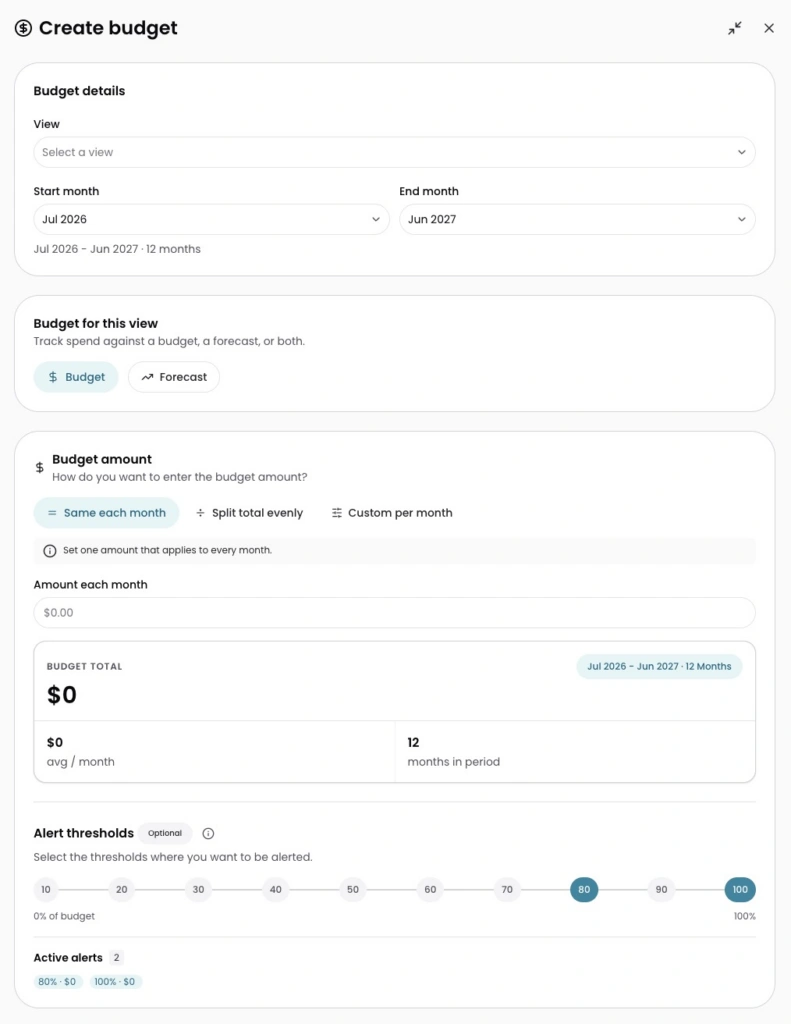
Image: Creating a Budget now happens directly in CloudZero: pick a View, choose Budget, Forecast, or both, set your amount, and configure alert thresholds.