Why this matters
Most cost questions get answered the same way. You read a chart and the table under it together. Maybe you spot a jump on the chart, and then you go looking in the table for the service, account, or team that caused it. When you can see more of that table while the chart is still in view, the whole review goes faster. You’re also a lot less likely to lose your place halfway through.
Earlier this year we launched CloudZero’s new UI, rebuilt on a single modern codebase. But launching a new interface is the starting line, not the finish. One of the most consistent pieces of feedback we heard was that the layout left too much unused space on screen, especially on laptops. Some people like a roomy layout. Others want to fit as much data as their browser will allow. Now you get to choose.
What we built
Display Density is a new personal setting with two options: Comfortable and Compact.
Comfortable is the default, the layout you’re already looking at in CloudZero today. When you switch to Compact, CloudZero reduces the spacing around charts, panels, controls, legends, headers, filters, and tables across the whole platform, including Explorer, dashboards, Optimize, and Monitors.
The difference is immediately visible. In Explorer, Compact fits eight or more table rows below the chart on the same screen where Comfortable shows just one. Chart legends that wrapped onto a second line now fit on a single line, which makes it easier to match a color on the chart to the name it belongs to.
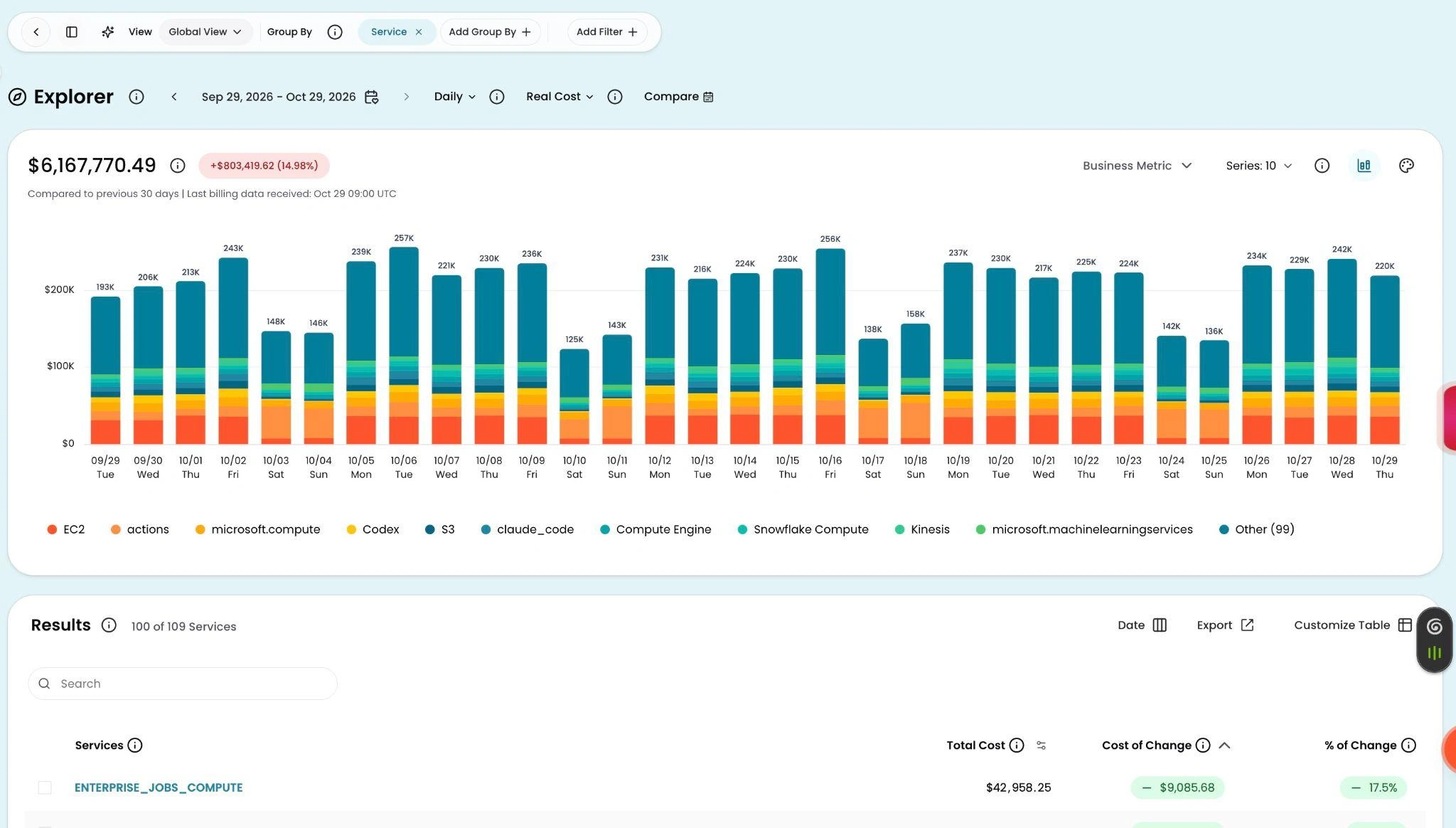
Explorer in Comfortable view. The chart legend wraps to two lines, and one table row is visible below the chart.
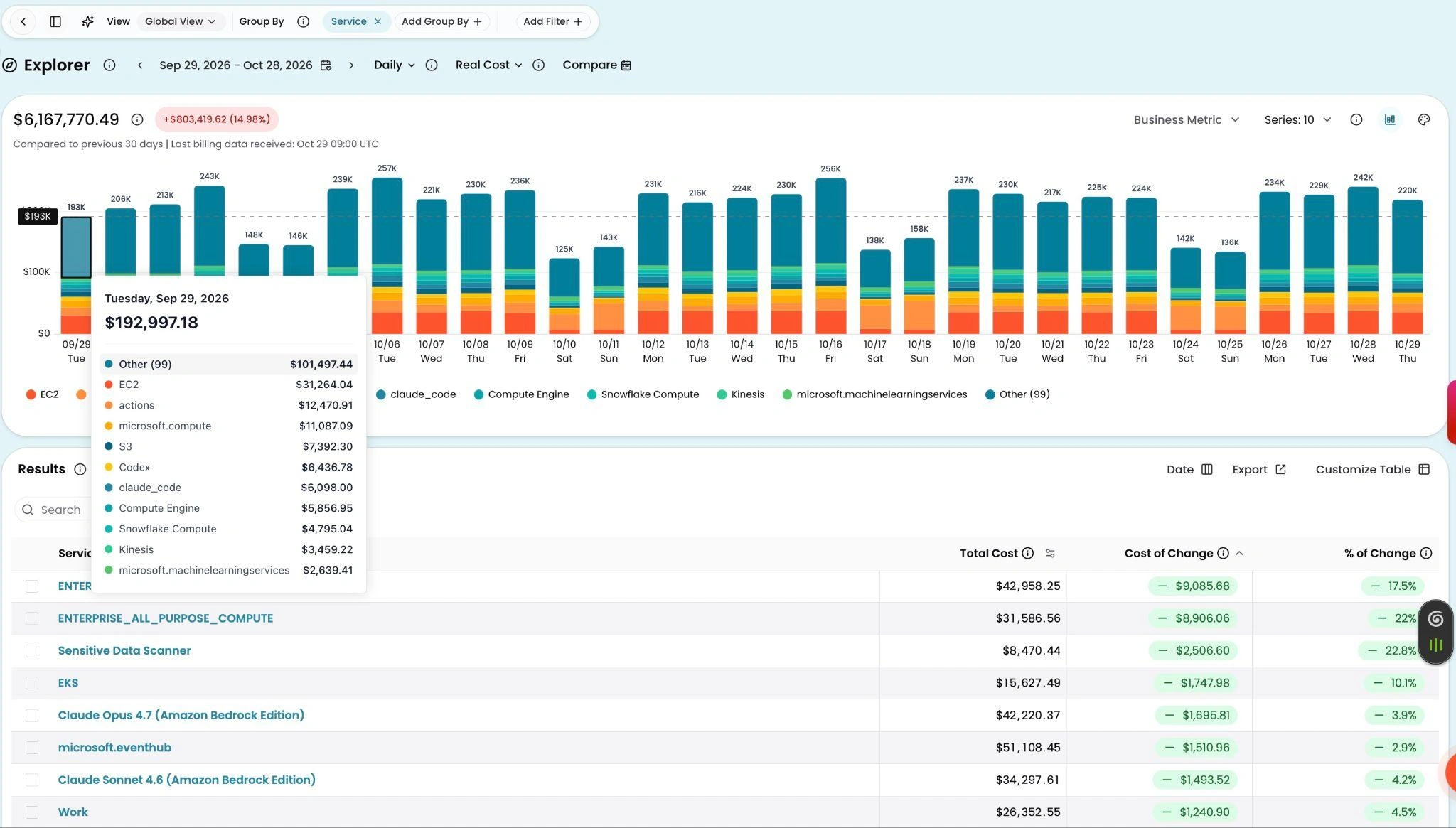
The same Explorer view in Compact. The legend fits on a single line, and eight table rows are visible without scrolling.
Compact comes in handy on a screen share, too. Say you’re walking finance through last month’s spend. With Compact on, the chart and the rows that explain it stay in the same frame, so nobody on the call is waiting while you scroll around looking for the right line. And if you’re presenting on a big monitor, or you’d just like a little more space on the page during a long review, you can switch back to Comfortable.
This is a personal setting. Nothing changes for the rest of your team, and your choice syncs across your open browser tabs so you only set it once.
How it works
To turn it on, select your profile icon at the bottom left of the navigation sidebar, then select Personal Settings. Under Appearance, choose Compact. The change takes effect right away across CloudZero, and you can switch back any time from the same place.
See it in the docs → https://docs.cloudzero.com/docs/personal-settings#appearance