Why this matters
Picking a dimension means choosing from a list of names. But names only tell users so much. “Product,” “Team,” and “Cost Center” mean different things in different orgs. If you’re building a report you have to guess which one fits the question you’re answering.
A short description on each dimension gives you that answer while you’re choosing. Take a finance partner building a view for a quarterly review. “Team” might mean the engineering team from your tags or the team from an allocation rule. The two can give different totals. A one-line description tells them which is which, so the number they present is the right one. When someone later asks how it was grouped, the answer is written on the dimension. It also means fewer “what’s in Product Line?” questions in Slack, and a new analyst can learn your setup on their own just by reading the list.
The same gap shows up when cost questions come through the CloudZero MCP server. Nothing checks which dimension gets picked, and a name alone isn’t enough context to pick the right one.
What we built
You can add a description (up to 500 characters) to any custom dimension. Hover over the dimension in Explorer’s Group By and filter pickers, or in any other dimension picker across CloudZero, and you see its name and description together.
The CloudZero MCP server returns each description too, through get_available_dimensions. When a cost question comes through the MCP, the description gives enough context to pick the right dimension by meaning, not just by name.
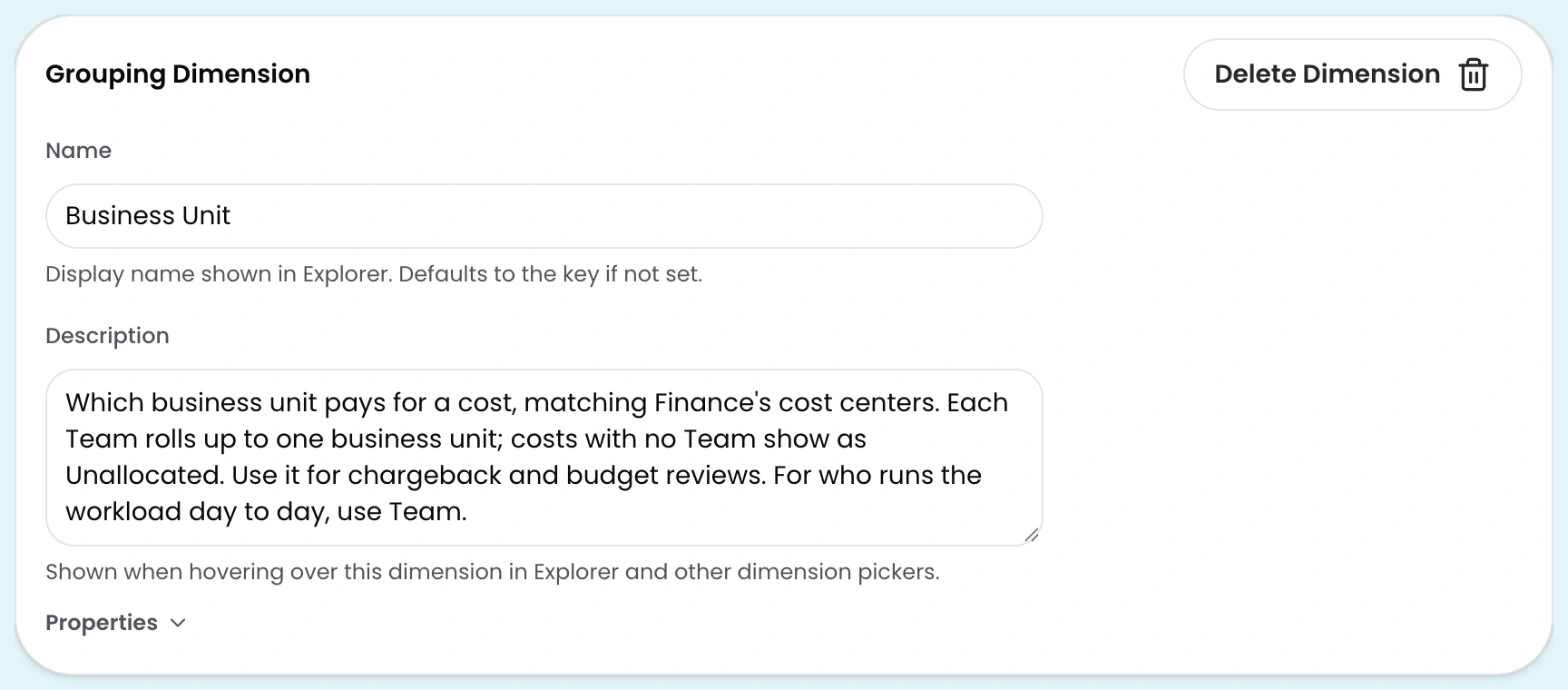
Adding a description to the Business Unit dimension in Dimension Studio. The description explains what the dimension covers, how it relates to Team, and when to use each one.
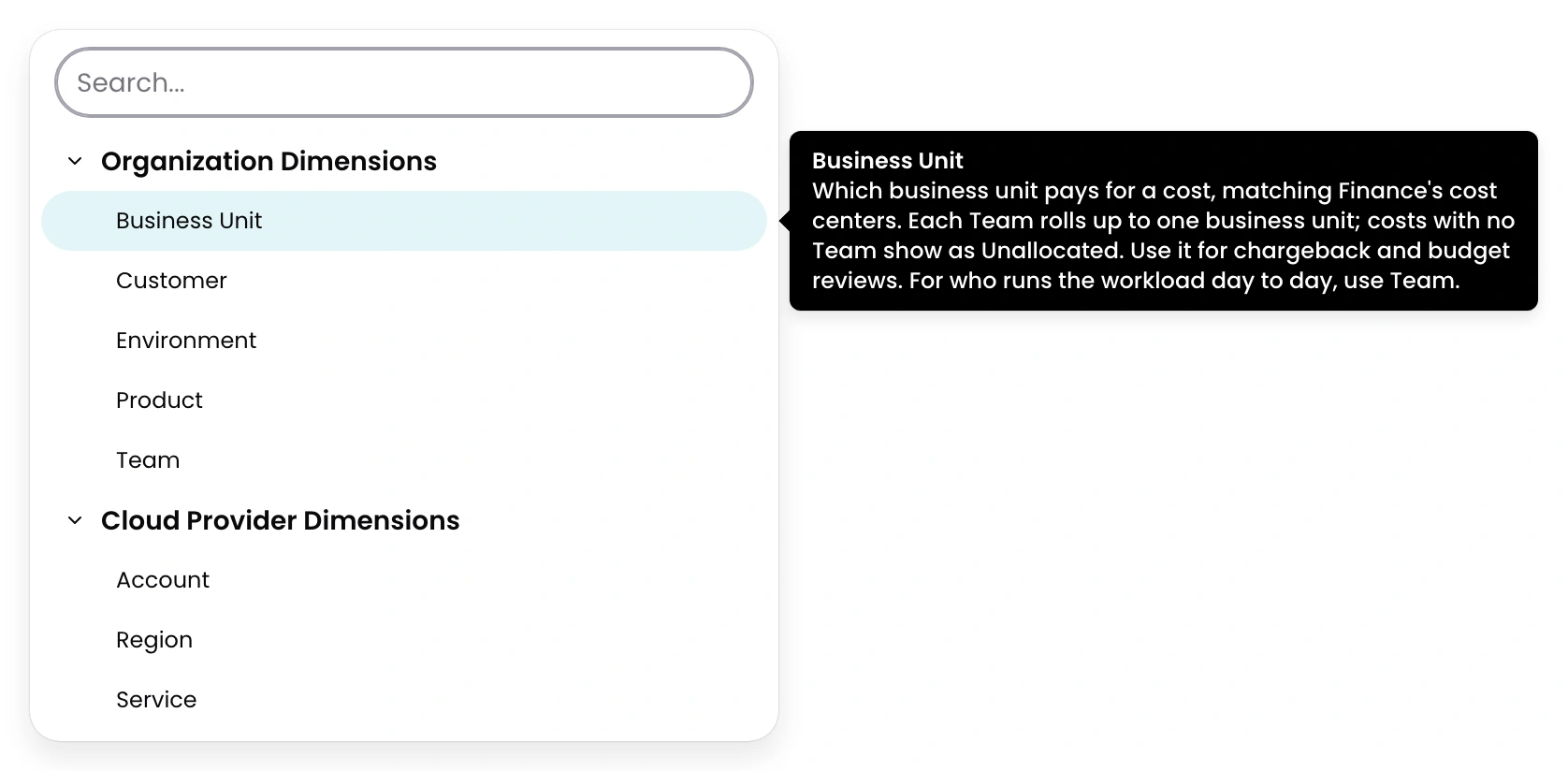
Hovering over Business Unit in the dimension picker. The description appears alongside the name, so you know what the dimension covers before you pick it.
How it works
Add a description in Dimension Studio or define it in CostFormation if you manage dimensions in code. You can reword it any time, and nothing in your reported costs changes.
See it in the docs → https://docs.cloudzero.com/docs/create-grouping-dimension#step-2-configure-properties-optional