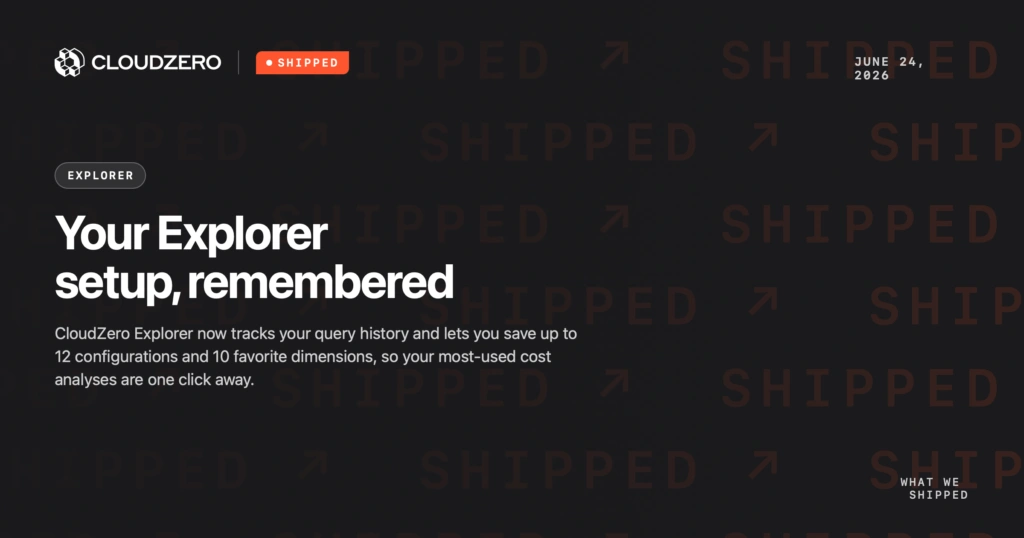
CloudZero Explorer now tracks your query history and lets you save up to 12 configurations and 10 favorite dimensions, so your most-used cost analyses are one click away.
Why this matters
You run the same cost analysis over and over – the same filters, the same group bys – and until now you rebuilt it from scratch each time you opened Explorer. The setup work piled up on exactly the analyses you use most. Worse, anything you’d looked at in a past session was gone the moment you moved on.
Now Explorer remembers. Your recent queries are tracked automatically, so a configuration you built yesterday is still waiting for you. The ones you keep coming back to are one click away and your most-used dimensions sit at the top of the Group By and filter dropdowns instead of being searched for each session. You spend your time reading cost data, not reassembling the analysis that shows it.
What we built
Two personalization capabilities in Explorer, scoped to your account so they follow you across sessions.
Query History + Favorites tracks your recent query configurations automatically and lets you save up to 12 of them, including multiple group by setups and the complex filter sets you return to. Saved and recent configurations live together in one panel, where you can rename them, open them in a new tab, or turn a Favorite configuration into a View. (See Shipped: Stop rebuilding Views from scratch.)
Favorite Dimensions lets you heart up to 10 dimensions so your go-tos always appear at the top of the Group By and Filter selectors.
How it works
Open the Configurations panel from the top-right corner of Explorer. You’ll see two sections: Favorites (the configurations you’ve chosen to keep) and Recents (your query history). Save any recent configuration to hold onto it, and use the “…” menu on any entry to rename it, open it in a new tab, or promote it to a View.
To favorite a dimension, open the Group By or Add Filter dropdown and heart the dimension you want. It pins to the top of the selector for quick access.
There’s nothing to set up. Explorer starts tracking as soon as you work. Everything is scoped to your account, so your saved configurations and favorite dimensions are there each time you return.
Customers: Open Explorer and save your first query.
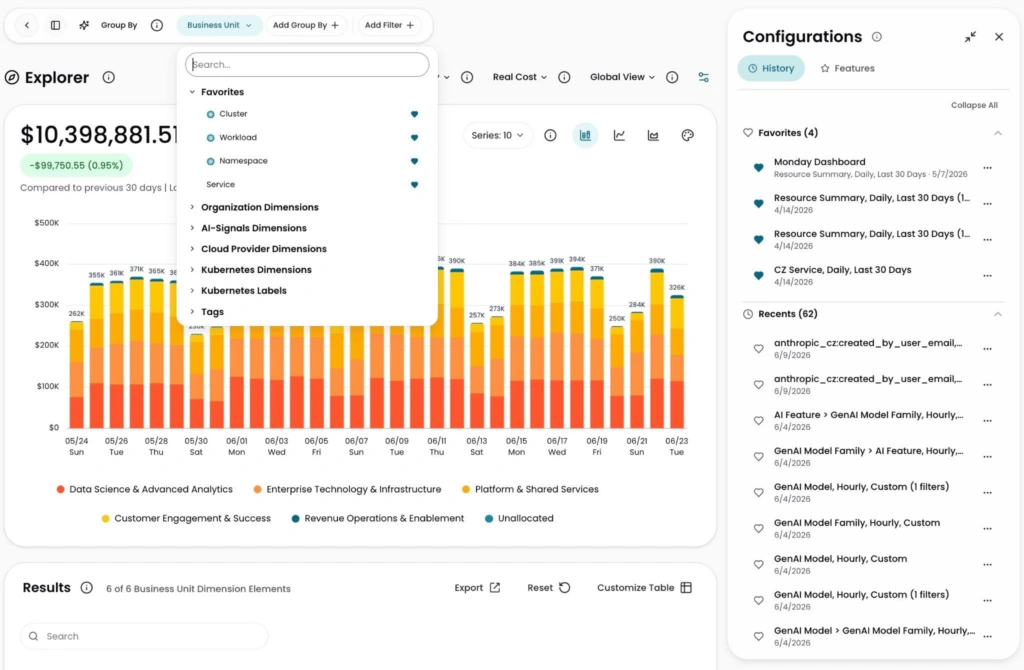
Image: The Group By dropdown (left) surfaces your favorited dimensions right at the top, while the Configurations panel (right) holds your saved Favorites alongside the Recent configurations that Explorer tracks for you automatically, so a go-to grouping or a saved setup like “Monday Dashboard” is always one click away.