Turning off trend comparisons cuts Explorer load times in half on long date ranges.
Why this matters
Explorer already does the work of calculating your biggest cost swings automatically: the “compared to previous X days” summary, Cost of Change, % of Change. That analysis is most valuable on shorter windows, especially under about 90 days.
Now you decide when you want that analysis or when you want pure speed on longer lookbacks, your call..
What we built
The Cost Trends toggle, found in Explorer’s Customize Table panel under Analysis Data. Flip it off and Explorer skips the comparison calculations, pulling only the data for the range you selected. It’s on by default, so nothing changes in your current view until you switch it. Each user controls their own toggle, and your choice carries through in shared and bookmarked links.
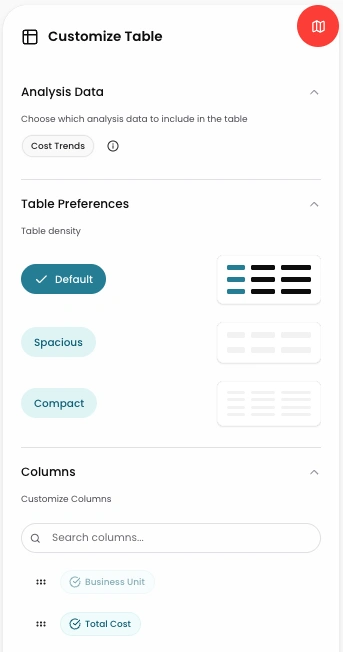
Image: Find the Cost Trends toggle under Customize Table > Analysis Data, on by default.
How it works
With Trends on, Explorer does double the work: a Last 30 Days view triggers analysis across 60 days so it can calculate the deltas. Turn Trends off and Explorer only retrieves data for the range you actually selected, which can cut load time in half on long lookbacks. The difference is most noticeable once you’re reviewing more than six months of data, where the comparison math slows you down without adding much you’ll act on.