Why this matters
Most people rebuild the same handful of Explorer queries: the monthly close view, spend by team for the staff meeting, the filter set that isolates a service you’ve been watching for two months.
When we shipped query history and favorites earlier this year, it gave you a way to save up to 12 Explorer configurations. As people leaned into it, we heard what would make it better: a clearer view of your current setup, more favorite slots, and a way to search across everything you’d saved and applied.
We reorganized the panel to make your active configuration visible at a glance, and your favorites and query history easier to find, name, and share.
What we built
The Favorites panel in Explorer now has four sections: your current state, search, favorites, and recents.
Current State sits at the top and shows your active configuration: group by, filters, granularity, date range, cost type, and compare. One click saves it as a favorite, and the rename field opens right away so you can name it while you still remember why you built it.
Search covers favorites and query history together, matching on names and on what’s inside the query. An account ID, a service name, or a cost type will find it. When you half-remember something you ran last week, searching the dimension you grouped on gets you there.
Favorites now holds up to 20 saved queries, up from 12. Hover any entry to see its configuration at a glance, or click to load it into Explorer. You can rename favorites inline, open them in a new tab, or turn one into a View your team can open by name.
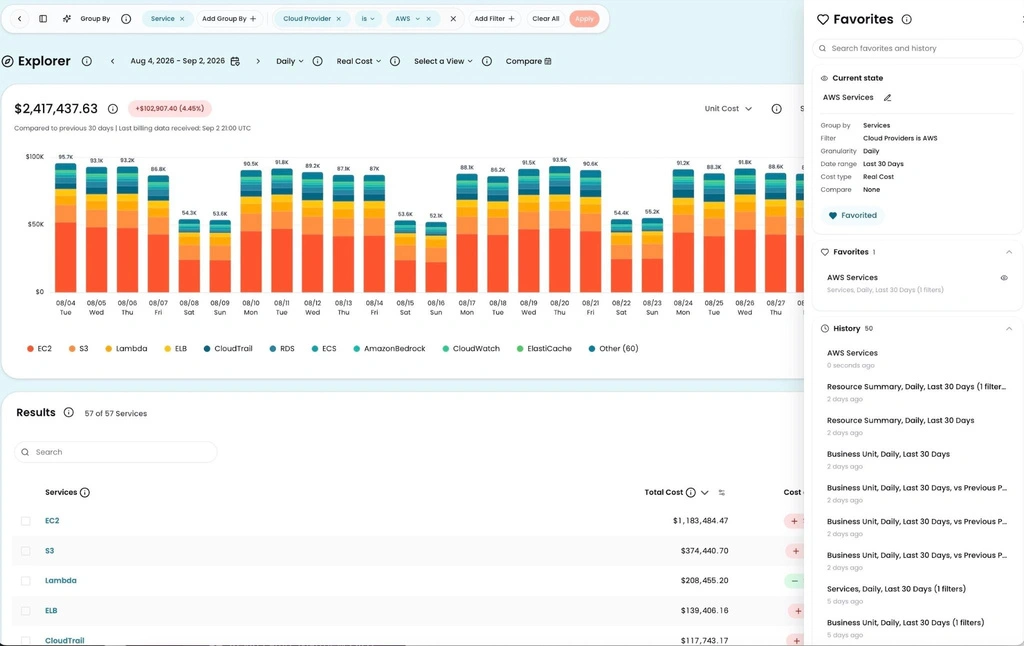
Image description: The Favorites panel open alongside Explorer, showing the current state of an AWS Services query with search, favorites, and query history.
How it works
Select Favorites from the icons on the right side of Explorer.
The panel opens with your current state at the top, search below it, then favorites and recents. Click any entry to load it. Use the action icons on a favorite to rename it, open it in a new tab, or create a View from it.