Using Kubernetes to manage containerized applications has its fair share of challenges, including cost visibility. One of those challenges is managing complexity. Using namespaces can help minimize that complexity.
Yet, a common misconception is that using multiple namespaces in a single Kubernetes cluster can degrade performance. Another issue: Kubernetes namespaces can reduce visibility into costs. There’s more to it than that.
What Is A Kubernetes Namespace?
A Kubernetes namespace is a logical boundary used to group and isolate resources within a single Kubernetes cluster. Understanding what a namespace in Kubernetes does — and what it doesn’t — is key to managing multi-team environments effectively.
Namespaces separate workloads such as applications, services, and pods so they can be managed independently, even though they share the same cluster infrastructure.
They do not create physical isolation. All namespaces still run on the same underlying nodes unless additional controls are applied.
Report
Finance needs to prove AI’s return: CloudZero report
260 senior finance leaders (more than half CFOs) told us why the speed of seeing AI spend, not the size of it, separates who pulls ahead on AI from who gets burned.
What Are Kubernetes Namespaces Used For?
Namespaces are ways Kubernetes organizes, filters, and manages independent groups of objects within its clusters. Kubernetes clusters require that each workload object be placed within a specific namespace.
Note that although a namespace isolates its components from those in other namespaces, they can still communicate (namespace cross-communication). This is especially relevant when working with a Kubernetes pod namespace setup, where pods in one namespace may need to reach services in another.
Namespaces provide scope for Kubernetes object Names. Names within a namespace must be unique, but you can use the same name in different namespaces.
For example, if you apply namespaces to separate your application’s lifecycle environments (development, staging, production). Each environment will have copies of the same objects with the same names.
Also note that namespace-based scoping applies only to namespaced objects, such as Deployments and Services, not to cluster-wide objects such as StorageClasses, PersistentVolumes, or Nodes.
Kubernetes namespaces also provide a way to control access to resources. This ensures that only authorized users can access specific resources. You can take advantage of this capability with Kubernetes Role-Based Access Control (RBAC).
There’s more.
Benefits of Kubernetes namespaces
Namespaces help teams:
- Group related resources
- Control access to workloads
- Reduce operational collision
- Organize large clusters
Limitations of Kubernetes namespaces
Namespaces do not eliminate complexity. They can introduce:
- Additional management overhead
- Harder troubleshooting across boundaries
- Misleading assumptions about isolation
To better understand these benefits and limitations, let’s take a closer look.
What Are The Types Of Kubernetes Namespaces?
When you first create a Kubernetes cluster, it will have three namespaces by default:
1. Kube-public
This is the namespace that any user can read with or without authentication. Kubernetes uses the kube-public namespace to expose cluster information required to boot components, so Kubernetes itself often manages the namespace.
2. Kube-system
This is the namespace that Kubernetes itself uses to manage its own components. The kube-system namespace typically has relatively permissive policies, so it is not recommended to deploy standard workloads there.
3. Default
This is the namespace where you create your applications and services.
The default namespace is also where any cluster object you add without specifying a namespace is created. It serves as the main target for any new user-added resources until you set up custom namespaces.
Oh, one more thing. You cannot delete the default namespace.
How To Use Kubernetes Namespaces
Ultimately, you can always explore your available namespaces with the following command:
Kubectl get namespaces
Yet, that’s not the only thing you can do here. Here’s how to take advantage of namespaces in Kubernetes.
How to create a namespace in Kubernetes with kubectl
There are two ways to create Kubernetes namespaces.
First, create a Kubernetes namespace using a single command:
kubectl create namespace <namespace-name>
For example, to create a namespace named “my-namespace“:
kubectl create namespace my-namespace
Alternatively, create a YAML file and apply it as you would any other Kubernetes resource. For example, to create a namespace named “test”:
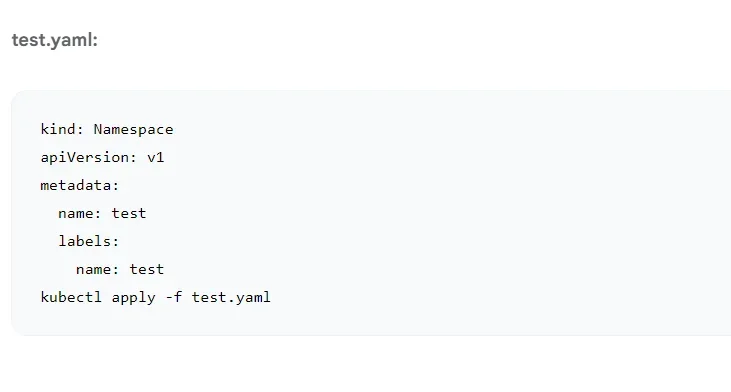
Once you have created a namespace, you can use it to organize your Kubernetes resources. For example, you can create pods, services, and deployments in a specific namespace.
To view all of the namespaces in your cluster, you can use the following command:
kubectl get namespaces
You’ll see the three original namespaces and the one you just created.
To delete a namespace, you can use the following command:
kubectl delete namespace <namespace-name>
For example, to delete the namespace named “my-namespace”:
kubectl delete namespace my-namespace
Please note that deleting a namespace also deletes all resources currently in that namespace.
How to create resources in a namespace
You need to specify the namespace in which to create the resource. Otherwise, the resource, such as a pod, will be deployed to the currently active namespace (or the default namespace).
There are two ways to create a resource in a specific namespace:
1. Apply the single command
kubectl apply -f pod.yaml –namespace=mynamespace
This command enables you to use the -namespace flag while creating that resource.
Note that kubectl fails to find the resource whenever you attempt to operate a Kubernetes resource in a different namespace. Using the –namespace flag enables you to interact with resources in other namespaces.
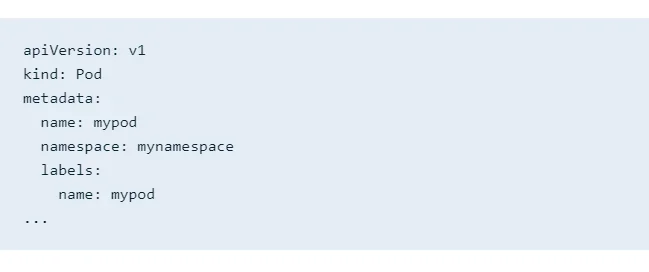
2. Create it with a YAML file
Be sure to specify a namespace within the resource’s YAML specification. Otherwise, the process will fail. Here’s how:
How to view resources in Kubernetes namespaces
Say you want to find a pod in a namespace. You’ll need to use the “namespace” flag. Otherwise, you won’t find it because all commands run against your currently active Namespace. This is how to do it instead:
$ kubectl get pods –namespace=test
NAME READY STATUS RESTARTS AGE
mypod 1/1 Running 0 10s
This can get tedious pretty fast. Here’s what to do if you work on a team with a separate Namespace for everything, and you don’t want to use the “namespace” flag every time you run a command.
How to manage active namespaces
Use the Kubens command to view all your namespaces. The tool highlights your active namespace, where any command you run applies. To switch your active namespace to the one you want, specify it by running the command:
kubens, “your preferred namespace”
Now, when you run your “view resource” command, you’ll be able to find it where you created it.
How to enable cross-namespace communication
Say your app needs to connect to a Kubernetes service. In that case, use the built-in DNS service discovery. Simply point your app to the Service name.
But what if you have a service with the same name across multiple namespaces? In that case, use the DNS address in its expanded form. The common pattern looks like this:
<Service Aame>.<Namespace Name>.svc.cluster.local
But if you need to access a service (say production) in a different namespace (such as test), simply use the service name and the name of the namespace, as you can see here:
production.test
Here is something else you’ll want to note in relation to Kubernetes namespaces.
Kubernetes Pod Vs. Cluster Vs. Namespace: Key Differences
In Kubernetes, pods are the smallest deployable units. One or more containers run in a pod instead of directly on virtual machines.
A pod runs on a physical or virtual machine, called a node. The node provides the power to run pods, such as CPU and memory. A group of logically connected nodes is called a cluster.
The Kubernetes cluster usually comprises one master node and several worker nodes. The cluster distributes workloads among these workers, scaling as needed to meet demand.
You can quickly learn all about pods vs. nodes vs. clusters here.
A namespace is a way to organize independent components within a Kubernetes cluster to prevent name collisions.
What is the difference between a Kubernetes label, annotation, and namespace?
Namespaces are different from Kubernetes labels and annotations in several ways. Kubernetes annotations are metadata that are not intended to identify a Kubernetes object.
Annotations are key-value maps. You attach annotations to Kubernetes objects such as ReplicaSets and Pods.
Kubernetes labels are key-value pairs that store metadata used to identify objects.
Check out this post for more details about the differences between Kubernetes labels and annotations. For best practices on applying labels at scale, see our Kubernetes labels best practices guide.
Using Multiple Kubernetes Namespaces — Should You Do It?
Using multiple namespaces is usually a good idea, but only when it solves a real coordination problem.
By default, Kubernetes deploys resources to the active (default) namespace. As workloads grow, this can create naming conflicts, access risks, and operational confusion.
Multiple namespaces introduce structure.
When multiple namespaces make sense
Small teams
Namespaces help separate early workloads and avoid accidental overlap as the cluster grows.
Growing teams
Namespaces help separate environments such as development, testing, and production within a single cluster. Teams can work independently without affecting live services.
Large organizations
Namespaces support access control, workload separation, and policy enforcement at scale. They are often required for RBAC and operational boundaries.
When namespaces don’t help much
Namespaces do not automatically:
- Improve security
- Reduce costs
- Prevent performance issues
They only provide structure. Additional controls are still required.
Can Adding Multiple Namespaces Reduce Your Visibility Into Kubernetes Costs?
When you use CloudZero for Kubernetes Cost Analysis, it won’t be a problem. Here’s why.
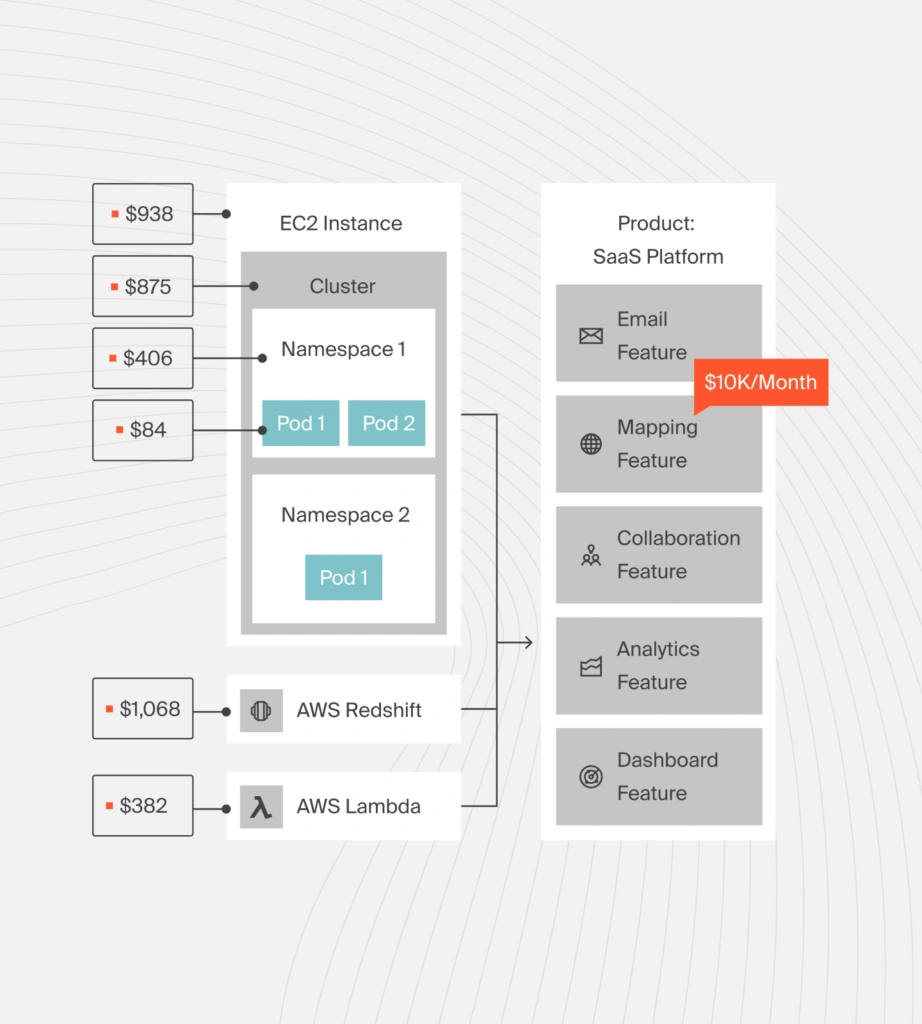
With CloudZero, you can map your Kubernetes cost telemetry in the context of your business. You’ll receive immediately actionable insights, including cost per namespace, per pod, per node, per cluster, per service, and per environment.
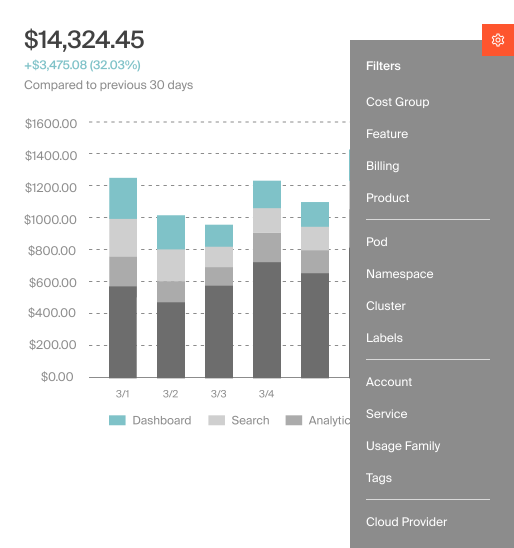
In addition, CloudZero lets you view Kubernetes costs on a per-unit basis, including cost per hour, per customer, per project, per feature, and more. You can drill down into any of these CloudZero cost Dimensions to reveal the details that could make all the difference:
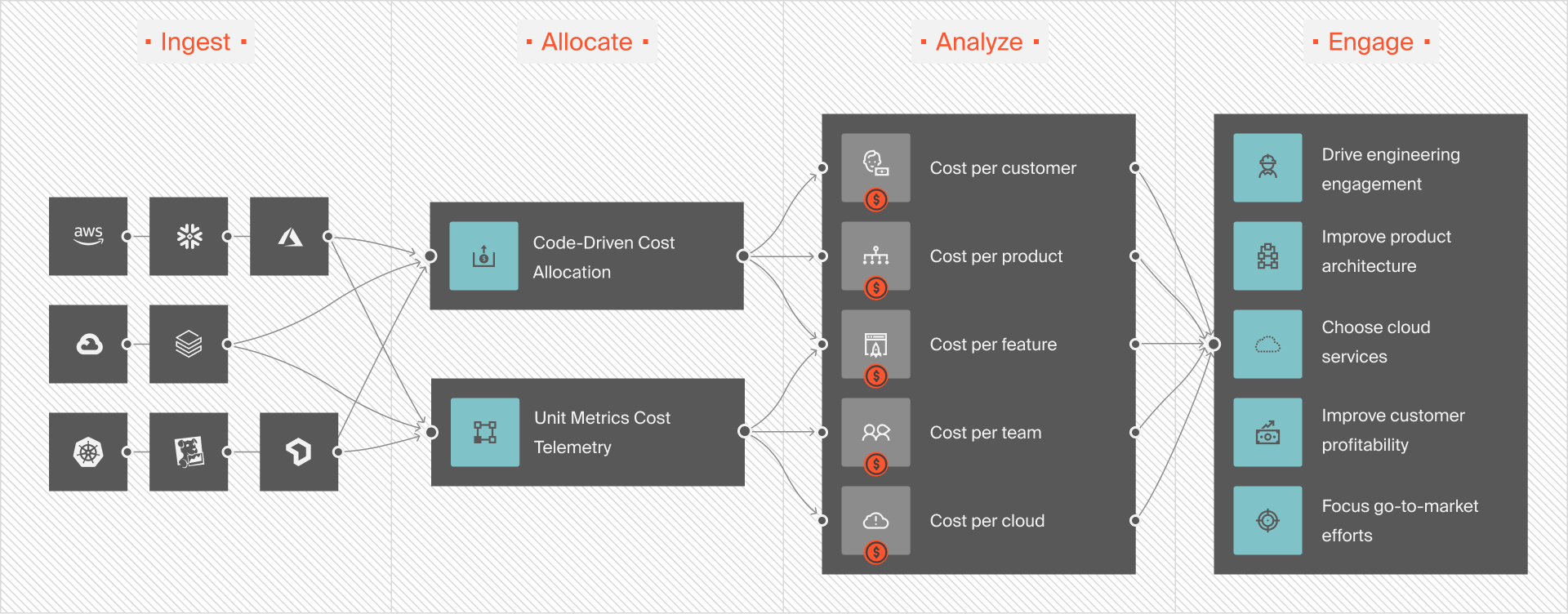
Even better, CloudZero is your single pane of glass for all your cloud spend. CloudZero lets you view your AWS, Azure, and GCP costs alongside Kubernetes and data cloud costs from Databricks, Snowflake, and Datadog.
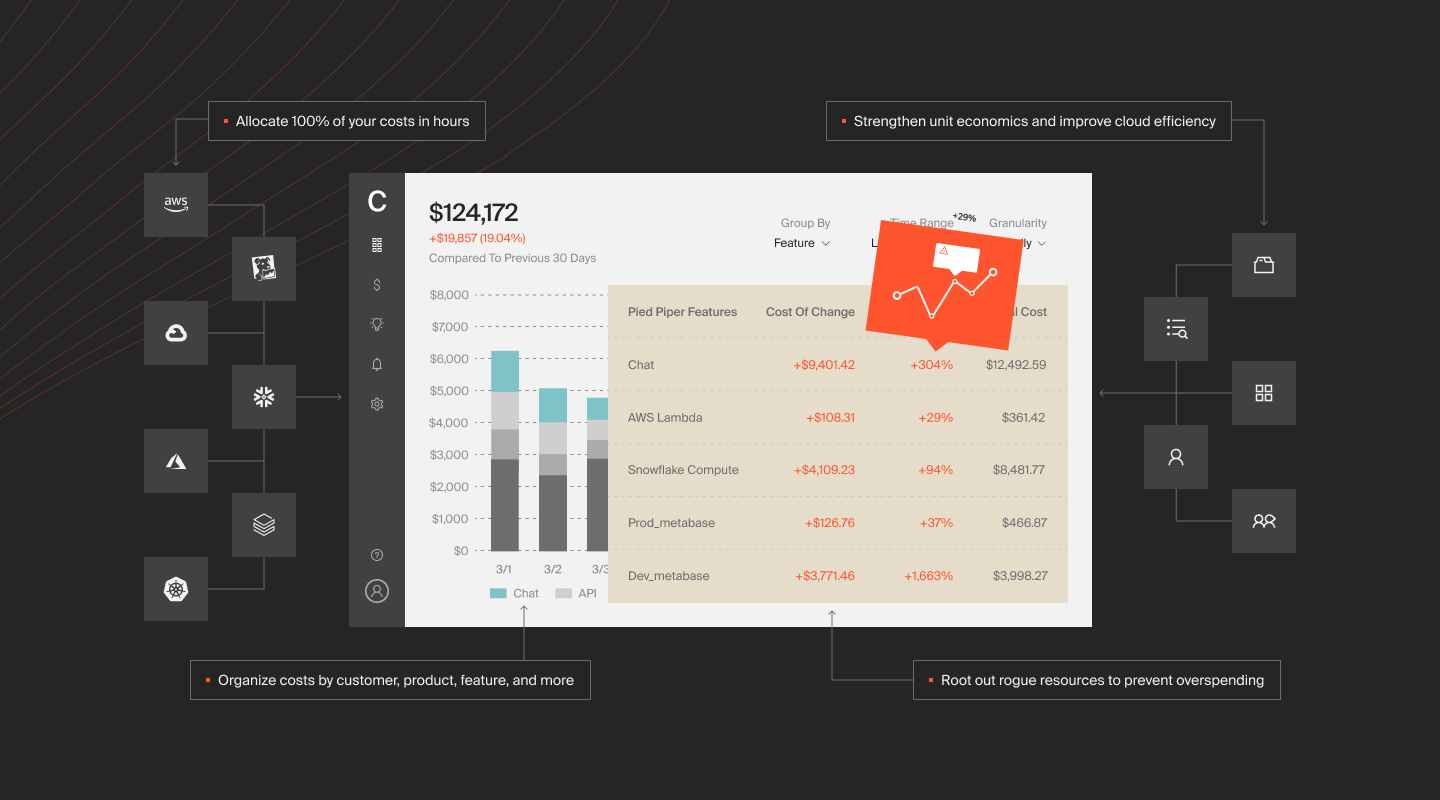
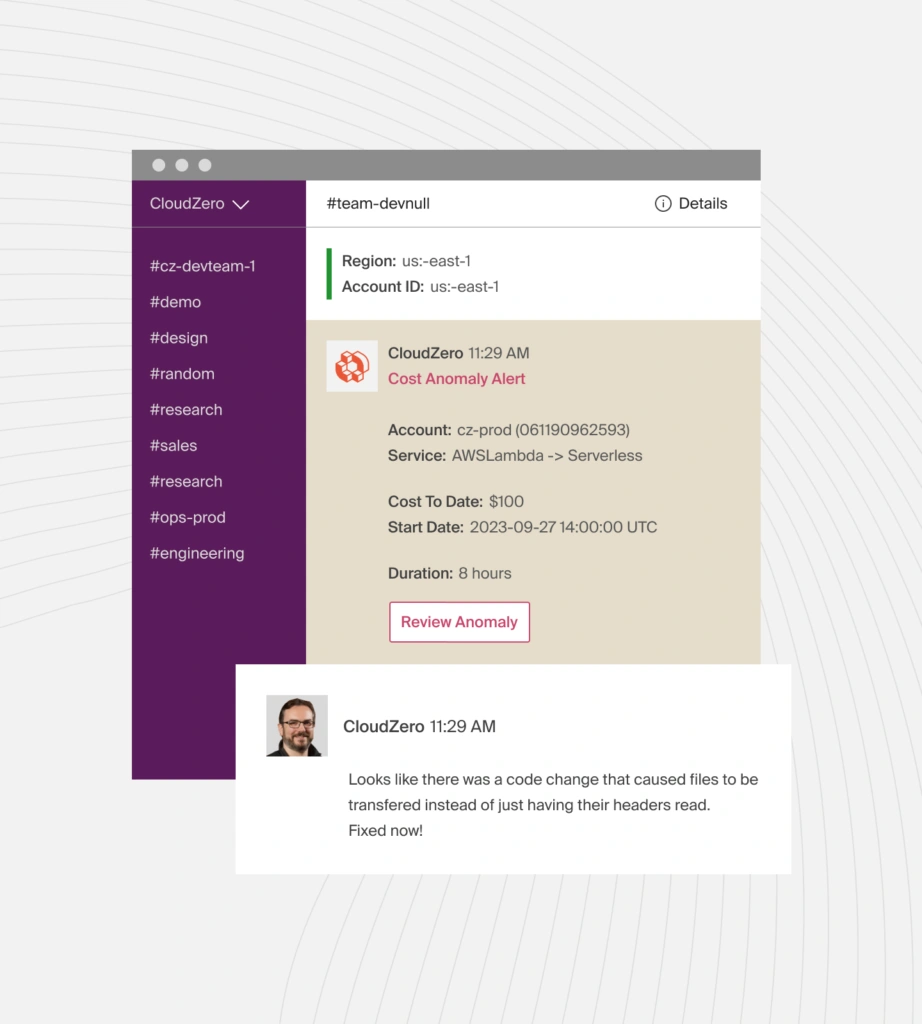
Ultimately, CloudZero’s real-time cost anomaly alerts you to unforeseen costs before they become costly problems. You will receive context-rich alerts via Slack, email, or text messages to ensure your team quickly gets to the root of the problem.
Companies like Remitly, Malwarebytes, and Drift (which saved $4 million) already use CloudZero.  for a chance to test CloudZero for yourself.
Frequently Asked Questions about Clusters vs. Namespaces